Blog
Keyboard accessibility testing: a checklist for developers
- accessibility
- keyboard
- testing
Put the mouse away and try to finish one task on your own site. Six checks cover most of what goes wrong for keyboard users: tab order, visible focus, traps, skip links, Enter and Space on custom controls, and Escape on dialogs. Each one with how to test it by hand in a minute.
Keyboard accessibility testing needs no tool to start. Unplug the mouse, or push it out of reach, load your page and try to finish the one task the page exists for: sign up, check out, send the form. If you cannot, nobody who relies on a keyboard, a switch device or a screen reader can either.
The six checks below cover most of what goes wrong. Each says what to press and what you should see. Run them on the pages that matter most first: sign-up, log-in, checkout, and anything with a dialog or a menu.
1. Tab order follows the page
Press Tab from the top of the page, then keep pressing it until you are back where you started. Shift+Tab goes back one stop.
You should see focus move in the order you read the page: header, main content, footer, left to right and top to bottom. Every link, button, field and control you can click gets a stop. Nothing you cannot see gets one.
Common failures: a positive tabindex that pulls one element to the front, a layout rearranged with CSS so the visual order no longer matches the source order, a hidden off-screen menu whose links still take focus, and a clickable div that never gets a stop at all.
2. Focus is always visible
Press Tab through the same page and keep your eyes on the screen, not the keyboard.
You should see where focus is at every single stop, with no guessing. A clear outline or ring around the focused element is enough.
Common failures: outline: none with nothing in its place, a focus style that only exists on :hover, a ring the same colour as the background, and focus that lands on an element behind a sticky header or cookie banner. If you lose track of focus for even one press, so does everyone else.
3. No keyboard traps
Press Tab into every widget on the page: embedded videos, maps, rich text editors, date pickers, chat widgets, iframes. Then try to Tab or Shift+Tab out again.
You should see focus leave each widget and carry on to the next thing on the page. If a widget does need a special key to leave, such as Escape in a code editor, the page says so.
Common failures: third-party embeds and editors that swallow Tab, and custom components that move focus back to their own first element when you try to leave. This is the worst failure on the list, because the user's only way out is reloading the page.
The one place a trap is correct is an open modal dialog. That is check 6.
4. A skip link comes first
Press Tab once after the page loads.
You should see a "Skip to main content" link appear as the first stop. Press Enter, then Tab again: the next stop should be inside the main content, not back in the header.
Common failures: no skip link, so a keyboard user tabs through 40 navigation links on every page. A skip link that is never shown when focused. A skip link whose target is not focusable, so the page scrolls but focus stays at the top and the next Tab goes straight back into the navigation. Giving the target tabindex="-1" fixes that.
5. Enter and Space work on custom controls
Press Enter and Space on every control that is not a native button, a or form field: custom dropdowns, toggles, tabs, accordions, cards that act as links, icon buttons built from div or span.
You should see each one do what a click does. Buttons answer to both Enter and Space, links to Enter. Composite widgets such as tabs, menus and listboxes usually move with the arrow keys, and Home and End where it makes sense.
Common failures: a div with an onClick and nothing else. It never gets focus, never answers a key, and a screen reader does not call it a button. Using a real button element fixes all three at once. If you cannot, the element needs role="button", tabindex="0" and its own key handler for Enter and Space.
6. Dialogs trap focus, and Escape lets you out
Press Enter on whatever opens a dialog, a drawer or a menu. Tab through it, then press Escape.
You should see focus move into the dialog when it opens. While it is open, Tab and Shift+Tab cycle inside it and never reach the page behind it. Escape closes it, and focus goes back to the button that opened it.
Common failures: focus left on the page behind the dialog, so the next Tab walks the hidden content. A dialog that only closes with the X button. Focus dropped to the top of the page on close, so the user has to tab back down from the start. The native dialog element opened with showModal() handles the first two for you.
The one-minute version
If you only have a minute per page:
- Tab once. Is there a visible skip link?
- Tab through the page. Can you always see where focus is, and is the order the reading order?
- Open the main dialog or menu. Does focus go in, stay in, leave on Escape and come back to where it was?
- Finish the main task without the mouse.
A page that passes all four is ahead of most of the web.
Where scanners help, and where they stop
Automated scanners such as axe are worth running. They catch missing labels, missing alt text and low contrast quickly and the same way every time. What they cannot do is press keys and judge the result: whether focus order makes sense, whether you can see it, whether a dialog lets you out. Those checks need something that operates the page.
What ZeusQA does with this checklist
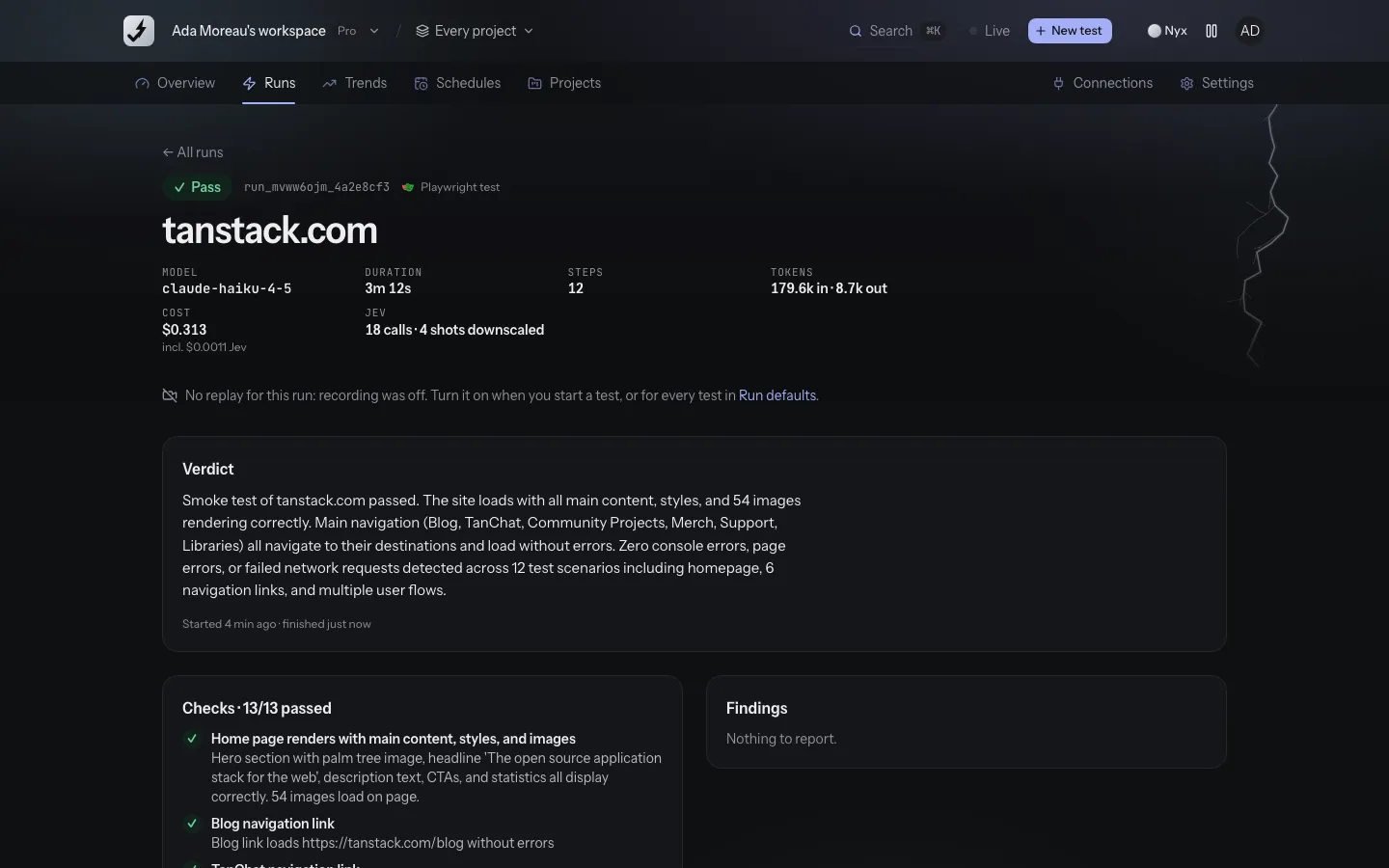
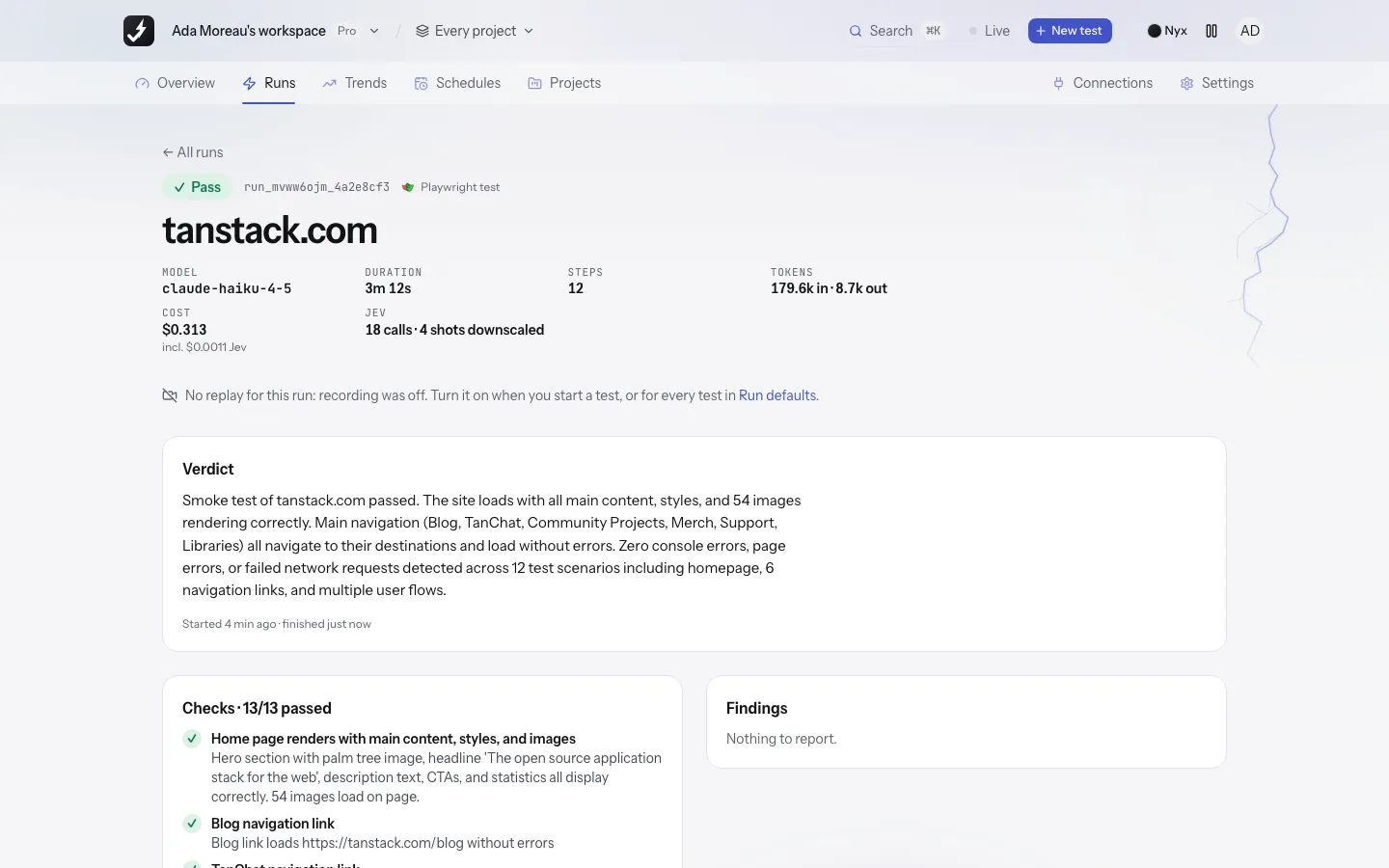
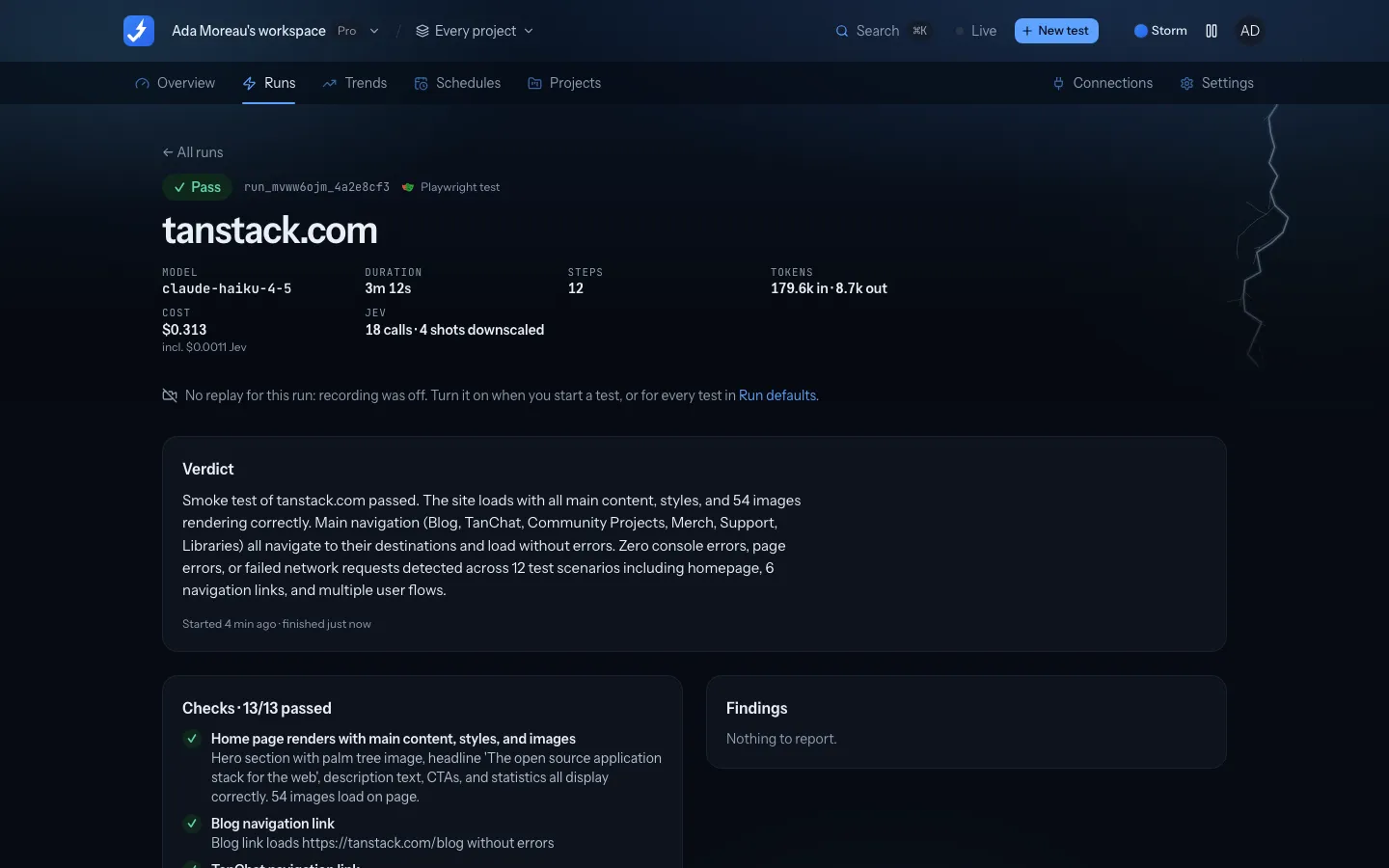
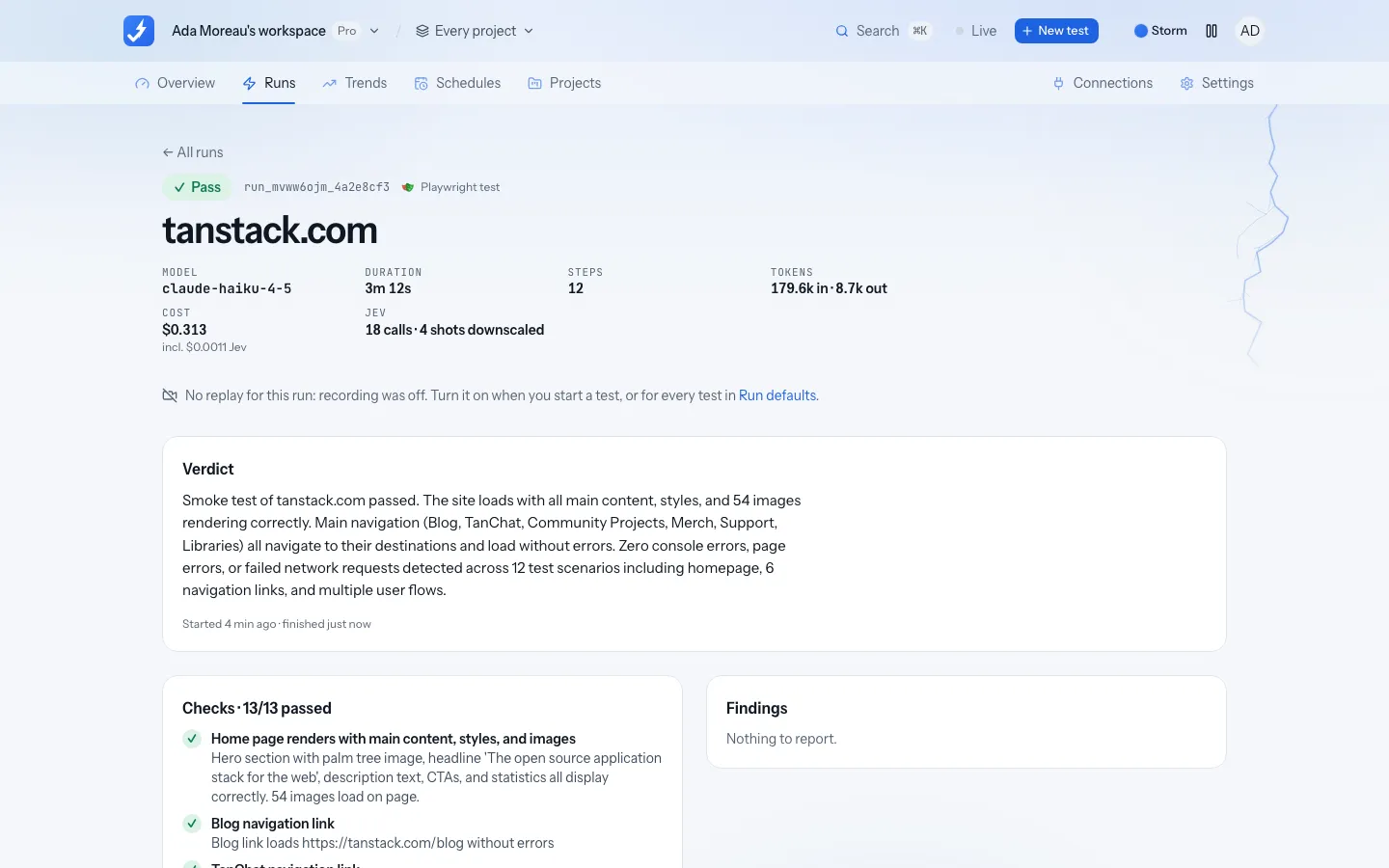
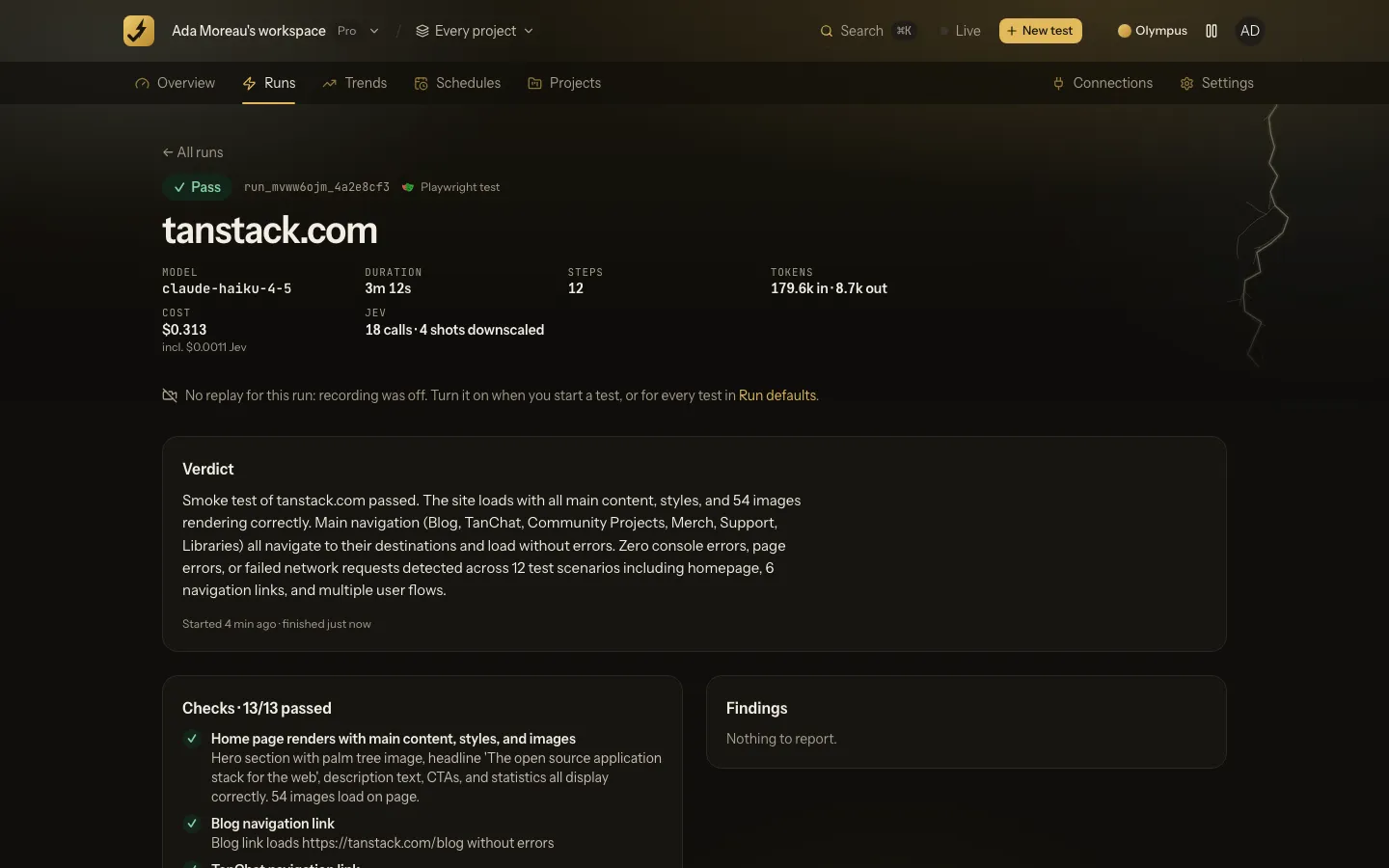
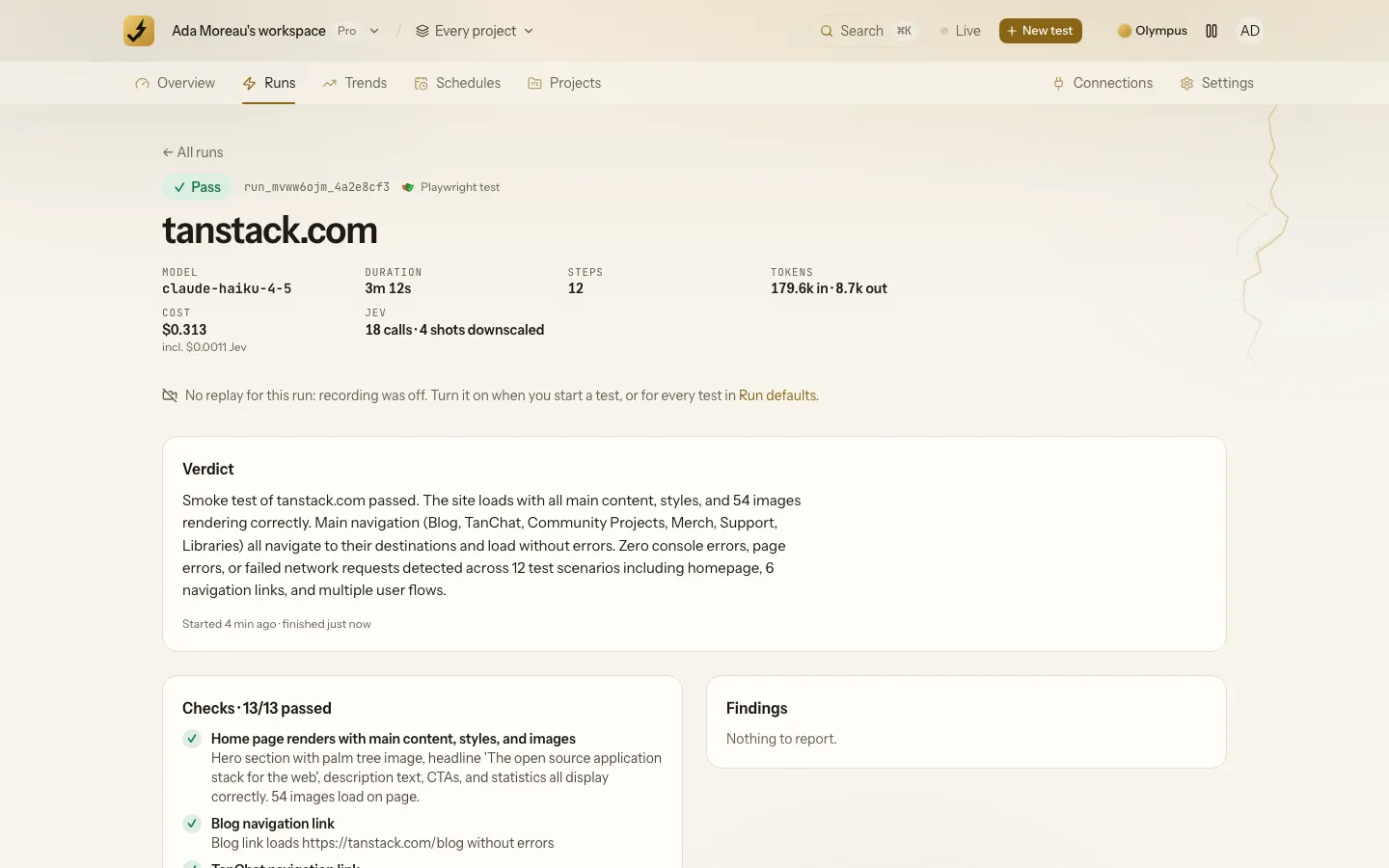
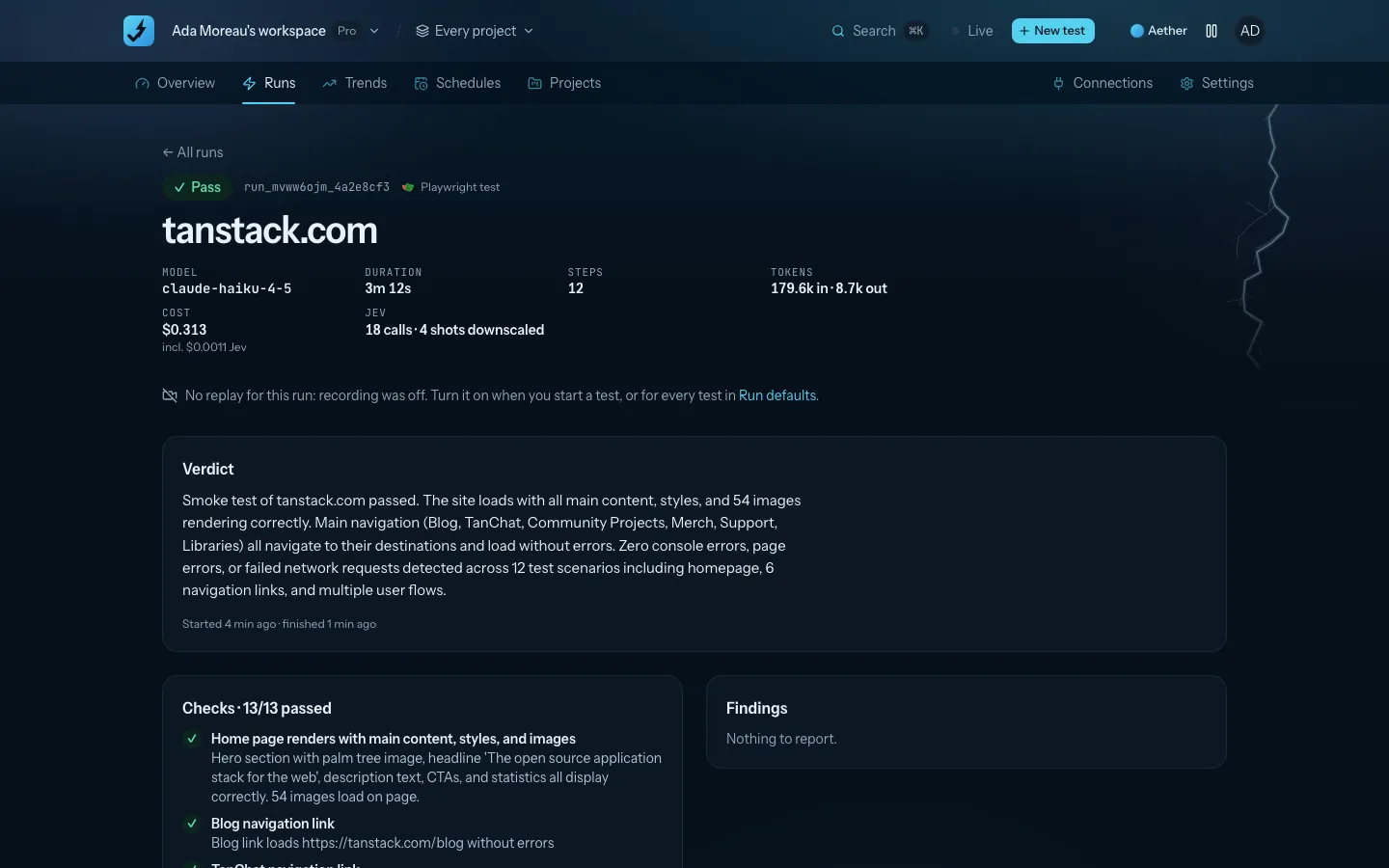
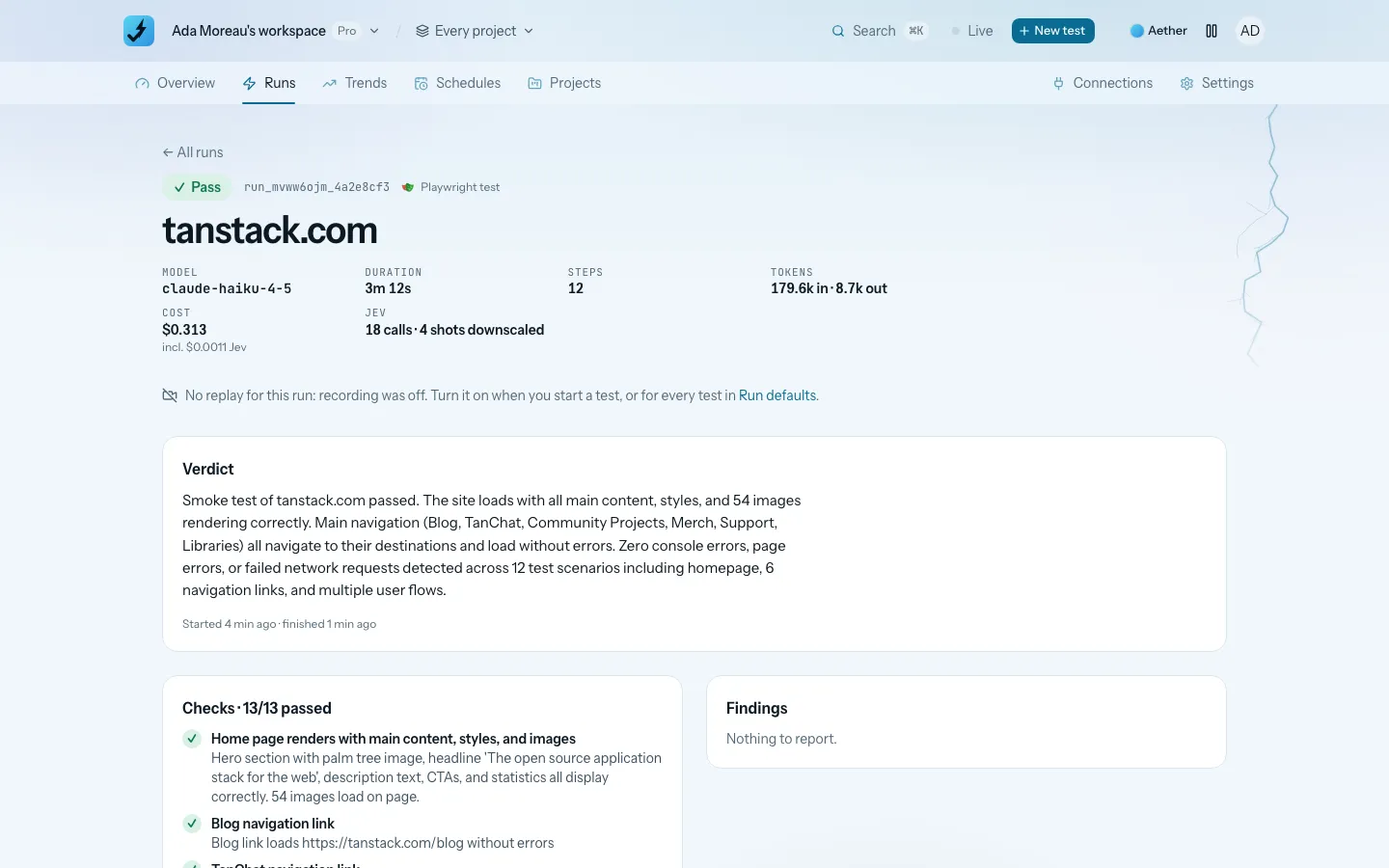
ZeusQA tests a web app from a plain-English prompt in a real browser. For keyboard accessibility it can do the checks above for you, when you ask for them in the prompt:
- It reads the page's accessibility tree, the roles and names a screen reader would announce, so an icon button with no accessible name shows up in text rather than hiding in a screenshot.
- It presses real keys in the browser: Tab, Shift+Tab, Enter, Space, Escape and the arrow keys, and can ask the browser which element has focus after each one.
- It takes a screenshot at every step, so you can see where focus was when it reports that focus disappeared.
- It returns a pass, fail or blocked verdict, named checks, and findings rated by severity with the evidence behind each one.
A prompt that covers most of this post:
Tab through the page with computer.keypress('Tab') from the top. Report the tab order, any stop with no visible focus, anything reachable by mouse but not by keyboard, and whether the first stop is a working skip link. Then open the main dialog or menu, check that focus moves into it, stays inside while it is open, closes on Escape and returns to the button that opened it.
It is not a WCAG conformance audit. It does not run axe-core, measure contrast ratios or produce a VPAT, and it is not a substitute for testing with real assistive technology and the people who use it. It is the fast, repeatable part of a manual keyboard pass, and the accessibility testing use case has the full prompts, including one just for dialogs and menus.
Start free with three runs and no card, and point the prompt above at your own sign-up page.
Part of the ZeusQA blog. Follow new posts with the RSS feed, and every release in the changelog.
Try it on your own site
Paste a URL, describe the flow in plain English, and watch a real browser do it. Three runs free, no card.